# 03 | Add blocks to quilt grid

## <mark style="color:blue;">Exercise 03</mark>

**03** | *Add 1+ blocks to the quilt grid.*

***Objective*** | To add our custom block to the quilt grid (that we created in Exercise 01).&#x20;

### <mark style="color:blue;">01 | Adding Block to Entire Quilt Grid</mark>

First option is adding the same block to every cell block in the entire quilt.

1. Click on the infinity sign (∞) in the top left corner of the quilt grid.
   * **Note:** All the cells are selected and are outlined in blue.
   * ![](https://2632437258-files.gitbook.io/~/files/v0/b/gitbook-x-prod.appspot.com/o/spaces%2FZIxhpDEaPtVb8DXlSENh%2Fuploads%2FMi4oI3IKyILr4SQAePp3%2Fa%2001%20inifinity%20selected.png?alt=media\&token=94c66f30-66b9-4f06-9606-d935e0f2ab7e)
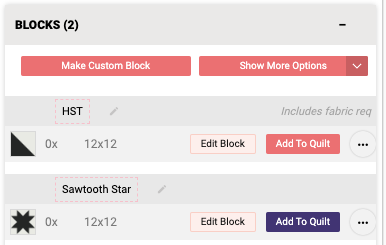
2. In the BLOCKS tab, click on the <mark style="color:blue;">**Add To Quilt**</mark> button next to the Sawtooth Star block.

   <div align="left"><figure><img src="https://2632437258-files.gitbook.io/~/files/v0/b/gitbook-x-prod.appspot.com/o/spaces%2FZIxhpDEaPtVb8DXlSENh%2Fuploads%2FzXi3mdjzJ21SPZHByElK%2Fa%2002%20add%20to%20quilt.png?alt=media&#x26;token=5d826541-7001-4a3d-9a31-a8f2dde3d3d4" alt=""><figcaption></figcaption></figure></div>
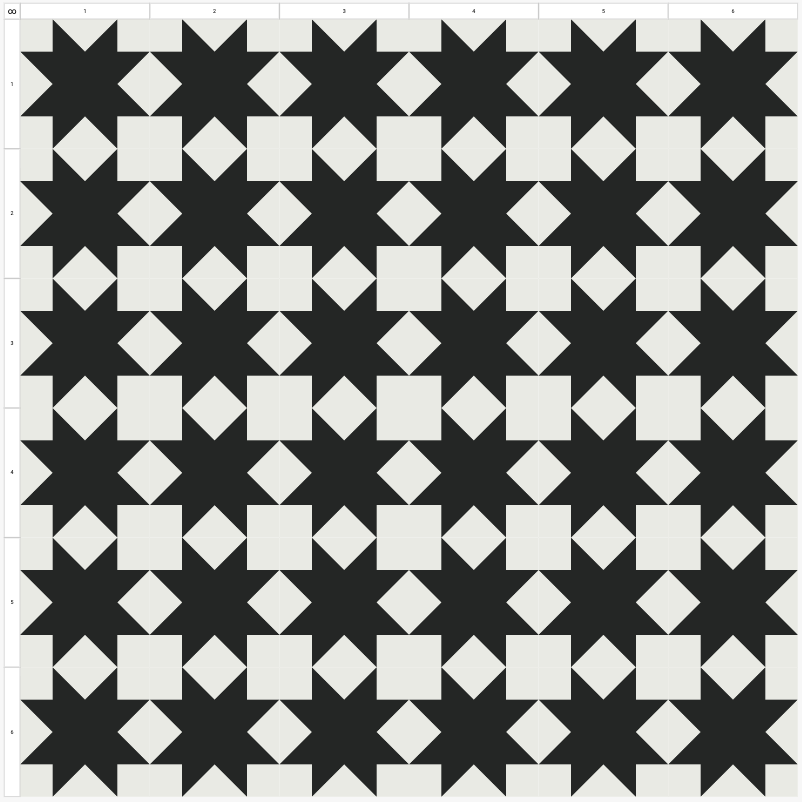
3. Deselect the cells by clicking anywhere outside the quilt grid. The result is the same block in every spot on the quilt.

   <figure><img src="https://2632437258-files.gitbook.io/~/files/v0/b/gitbook-x-prod.appspot.com/o/spaces%2FZIxhpDEaPtVb8DXlSENh%2Fuploads%2FS2UMnrCJ5zBOEL9OoIty%2Fa%2003%20quilt%20top.png?alt=media&#x26;token=7ea55a39-451a-48be-a2dc-5bfa0f622838" alt=""><figcaption><p>The same Sawtooth Star block in the entire quilt grid</p></figcaption></figure>

### <mark style="color:blue;">02 | Removing Quilt Blocks from the Quilt Grid</mark>

To remove a quilt block or multiple quilt blocks from the quilt grid:

1. Select the quilt block(s) you want to remove by <mark style="color:blue;">**clicking**</mark> on them.
2. On the keyboard, press the <mark style="color:blue;">**Delete**</mark> button.&#x20;
   * **Note:** You can also use the Back Space button to delete blocks.
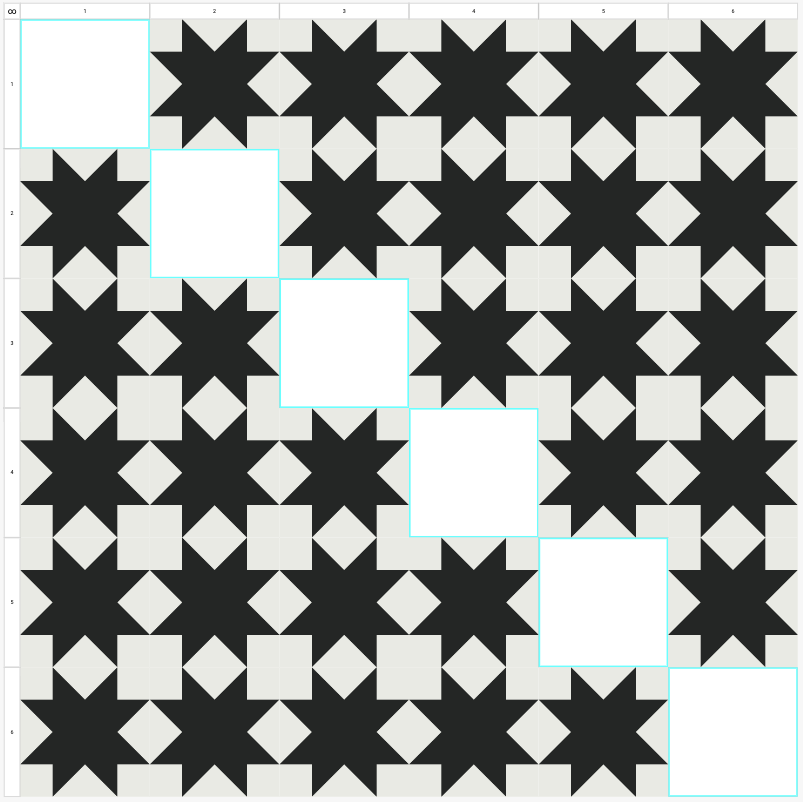
3. The selected blocks have been removed and the corresponding quilt grid cells are now empty.

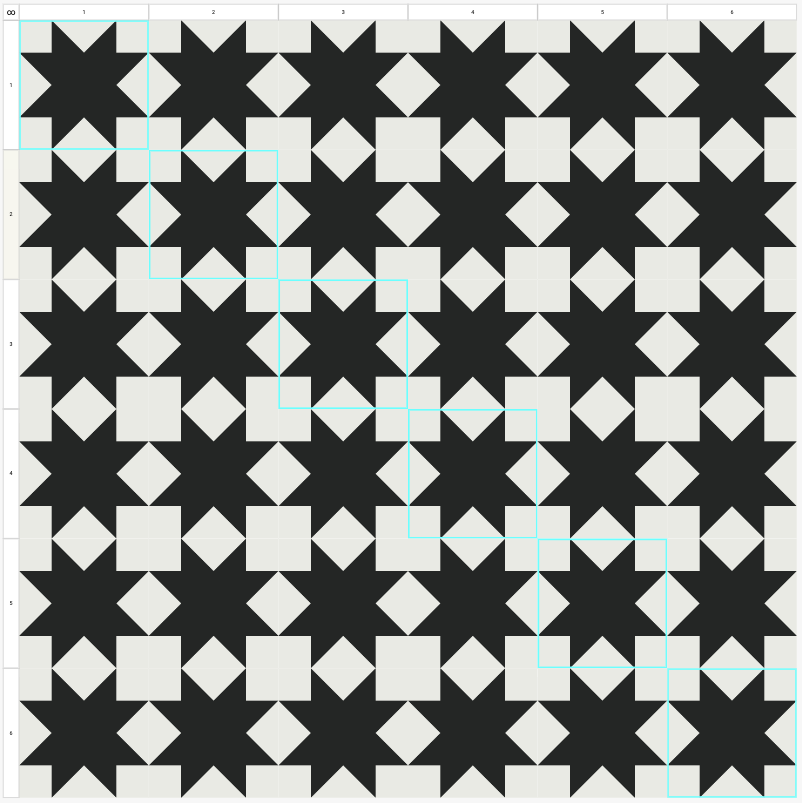
   <div align="left"><figure><img src="https://2632437258-files.gitbook.io/~/files/v0/b/gitbook-x-prod.appspot.com/o/spaces%2FZIxhpDEaPtVb8DXlSENh%2Fuploads%2Fpxm7oqLWIZif7oxF50Ay%2Fb%2003a%20selected.png?alt=media&#x26;token=3db220b0-8489-42e8-936f-28eb25d722c8" alt=""><figcaption><p><em>Selected quilt grid cells are outlined in blue</em></p></figcaption></figure> <figure><img src="https://2632437258-files.gitbook.io/~/files/v0/b/gitbook-x-prod.appspot.com/o/spaces%2FZIxhpDEaPtVb8DXlSENh%2Fuploads%2FXh8M1QGaC6CPlqGwtK2x%2Fb%2003b%20deleted.png?alt=media&#x26;token=80bc68a6-11dc-4f3c-8a64-63e07b8d9dc9" alt=""><figcaption><p><em>Selected quilt grid cells are now empty, the blocks deleted</em></p></figcaption></figure></div>

### <mark style="color:blue;">03 | Using the Selection Tool Button</mark>

Another option is to use the [*<mark style="color:blue;">Selection Tool</mark>*](https://glossary.prequilt.com/pq-glossary/ss#selection-tool) button found on the vertical [*<mark style="color:blue;">Toolbar</mark>*](https://app.gitbook.com/s/6bPmBgJH7XZ5gcieNGS3/pq-glossary/ts#toolbar) to select cells blocks in the quilt grid. This has many options, so give them all a try. In this example, I'll showcase one of the checkerboard options.

1. *Starting with a blank quilt grid*, click on the <mark style="color:blue;">**Selection Tools**</mark> button (<img src="https://2632437258-files.gitbook.io/~/files/v0/b/gitbook-x-prod.appspot.com/o/spaces%2FZIxhpDEaPtVb8DXlSENh%2Fuploads%2F2O6MauLlbV6yIlYit3io%2F01a%20tool%20button.png?alt=media&#x26;token=81430786-4dd2-47c5-a12d-b28ea3db6c5a" alt="" data-size="line">) on the vertical Toolbar.

   <div align="left"><figure><img src="https://2632437258-files.gitbook.io/~/files/v0/b/gitbook-x-prod.appspot.com/o/spaces%2FZIxhpDEaPtVb8DXlSENh%2Fuploads%2FxnHX9H8Nu6vPXOuIz7ay%2F01b%20tool%20button.png?alt=media&#x26;token=08a4b06a-4768-4bc0-8bde-b6dc886c9638" alt=""><figcaption></figcaption></figure></div>
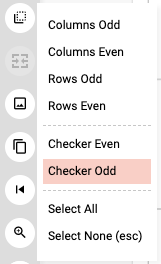
2. Click on one of the selection options. In this example, I've selected <mark style="color:blue;">**Checker Odd**</mark>.

   <div align="left"><figure><img src="https://2632437258-files.gitbook.io/~/files/v0/b/gitbook-x-prod.appspot.com/o/spaces%2FZIxhpDEaPtVb8DXlSENh%2Fuploads%2FxRP8yhxAR8vF1xQxhi3u%2F02%20checker%20odd.png?alt=media&#x26;token=72ea148c-baf3-40d6-b9d8-a6296642b0df" alt=""><figcaption></figcaption></figure></div>
3. In the BLOCKS tab, click on the <mark style="color:blue;">**Add To Quilt**</mark> button next to the Sawtooth Star block.

   <div align="left"><figure><img src="https://2632437258-files.gitbook.io/~/files/v0/b/gitbook-x-prod.appspot.com/o/spaces%2FZIxhpDEaPtVb8DXlSENh%2Fuploads%2Fjq2WDS8V1XZqAML71qC6%2Fa%2002%20add%20to%20quilt.png?alt=media&#x26;token=153c3b69-6b89-4802-9ccd-0617ee5a522b" alt=""><figcaption></figcaption></figure></div>
4. Deselect the cells by clicking anywhere outside the quilt grid. The result is the same block has been added to a checkerboard pattern on the quilt.

   <div align="left"><figure><img src="https://2632437258-files.gitbook.io/~/files/v0/b/gitbook-x-prod.appspot.com/o/spaces%2FZIxhpDEaPtVb8DXlSENh%2Fuploads%2FHf5kvdqttdLkO8gY1uRg%2F04a%20selected.png?alt=media&#x26;token=8daae468-4f20-4c5a-a684-9dfdd213e996" alt=""><figcaption><p><em>Check Odd cell blocks selected</em></p></figcaption></figure> <figure><img src="https://2632437258-files.gitbook.io/~/files/v0/b/gitbook-x-prod.appspot.com/o/spaces%2FZIxhpDEaPtVb8DXlSENh%2Fuploads%2FD72hu9136RIphzdDIdOx%2F04b%20added.png?alt=media&#x26;token=e66e44ec-16de-440c-903a-f22c5a382653" alt=""><figcaption><p><em>Check Odd cell blocks with Sawtooth Star blocks</em></p></figcaption></figure></div>